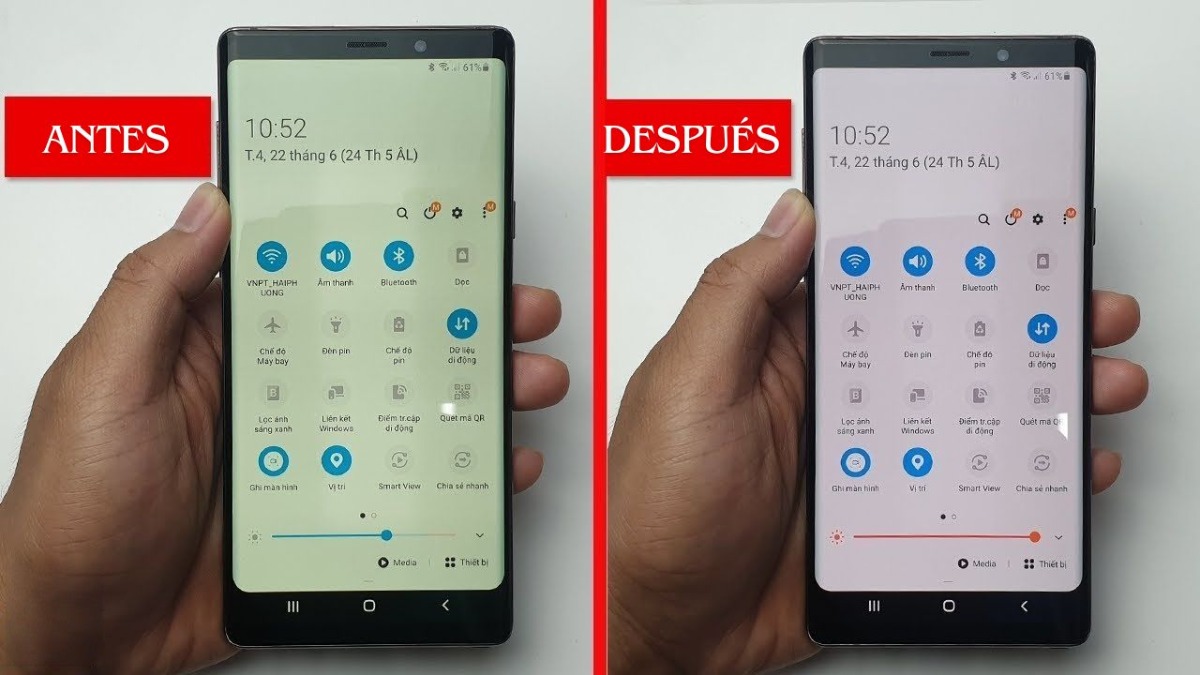
Operating systems on contemporary phones prioritize circadian health, pushing display tones toward the warmer spectrum as ambient daylight wanes. The software strips out high-energy blue wavelengths between 415 and 455 nanometers, pushing the white point toward deep amber. Often, these modes activate because of a forgotten sunset-to-sunrise schedule or an accidental touch in the quick-settings tray.
On Android, swipe down twice from the top of the display to access the Quick Settings panel. Look for the Night Light Android toggle (labeled "Eye Comfort Shield" on Samsung Galaxy handsets or "Reading mode toggle" on Xiaomi MIUI/HyperOS devices). Long-press the tile to enter its system configuration. Verify whether an automated schedule is active. If the slider is set to high intensity, drag it toward the cool end of the spectrum or disable the scheduled activation entirely.
For iPhone owners, open Settings > Display & Brightness > Night Shift iOS. Check whether the "Scheduled" or "Manually Enable Until Tomorrow" options are engaged. The "Color Temperature" slider at the bottom of the screen dictates the severity of the warmth; moving this bar toward "Less Warm" reintroduces the lost blue spectrum. If you prefer automated evening filtering without a heavy mustard tint, calibrate the slider to roughly 20% intensity rather than the aggressive factory default.

