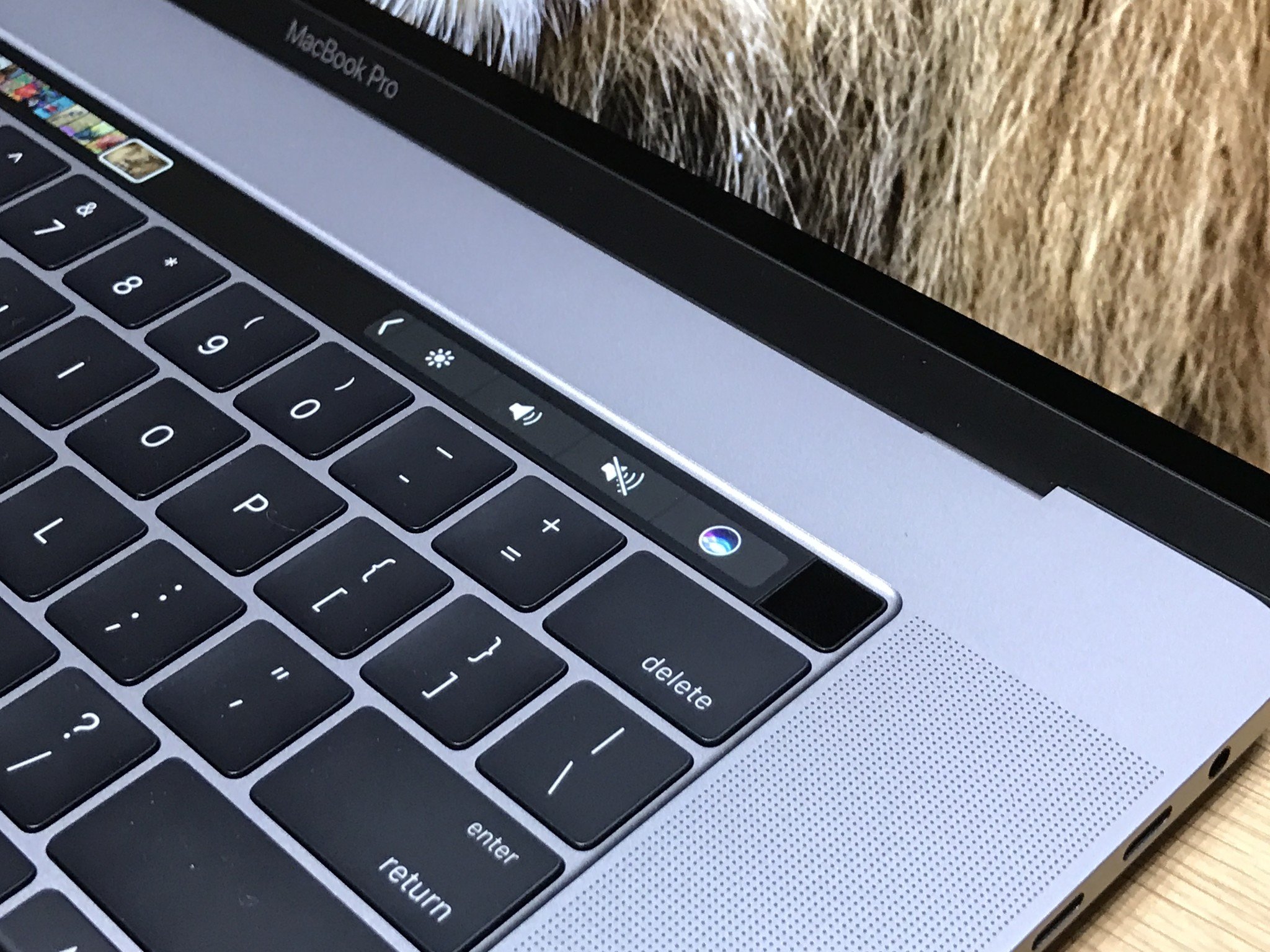
Hardware provides the canvas; software supplies the intelligence. A secondary screen running vanilla Windows 11 is merely an empty desktop strip. Bringing it to life as a contextual Touch Bar demands software that detects which application is currently focused and modifies the touch interface accordingly.
Power users achieve this by combining virtual Touch Bar software frameworks with custom AutoHotkey touch bar scripts.
A standard implementation relies on three layers:
- Window State Monitoring: An AutoHotkey loop tracks active process handles (`WinGetActiveTitle`, `ahk_exe`). When switching focus from Premiere Pro to Google Chrome, the script triggers an interface change.
- Interface Rendering: Software like Touch Portal, custom Electron shells, or Rainmeter skins generate the visual touch buttons on the secondary screen.
- Command Execution: Tapping a dynamic touch button fires off key combinations, mouse macros, or PowerShell routines directly to the active application.
autohotkey
; Sample logic for an AutoHotkey process monitor
#Persistent
SetTimer, WatchActiveApp, 250
return
WatchActiveApp:
WinGet, currentProcess, ProcessName, A
if (currentProcess != lastProcess) {
lastProcess := currentProcess
; Send HTTP command or IPC message to touch interface layer
UpdateTouchBarLayout(currentProcess)
}
return
Coupled with modern taskbar customization tools, users can pin Windows 11 dynamic shortcuts, media controls, and terminal launchers directly onto this dedicated lower bar. This keeps the primary display completely free of UI clutter while editing photos or gaming.

