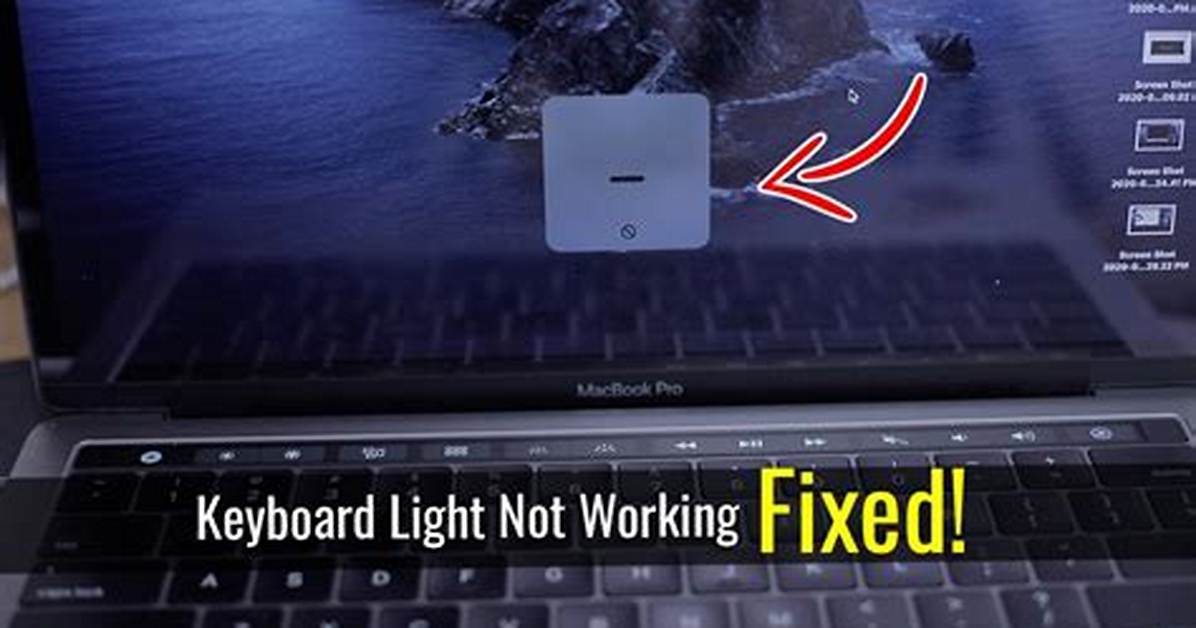
Taking back control from automated sensor routines requires adjusting specific switches introduced across recent macOS versions. Apple relocated backlight controls away from dedicated top-row hardware keys on modern Apple Silicon laptops, shifting primary management into the operating system interface.
Open System Settings > Keyboard. Locate the option labeled "Adjust keyboard brightness in low light" and toggle it off. Leaving this enabled grants the ambient light sensor complete authority to shut down backlighting whenever lighting levels rise above its preset threshold. Once disabled, keyboard illumination stays strictly at your chosen manual intensity regardless of room illumination.
Directly underneath, inspect the backlight sleep timeout setting ("Turn keyboard backlight off after inactivity"). This timer ranges from 5 seconds to Never. If set to a brief window like 5 or 10 seconds, typing pauses cause the keys to drop into sleep mode, making the keyboard look non-functional. For streamlined access, drag the Keyboard Brightness module directly from macOS Control Center into your persistent top menu bar, giving you an immediate slider to verify output levels with a single click.

