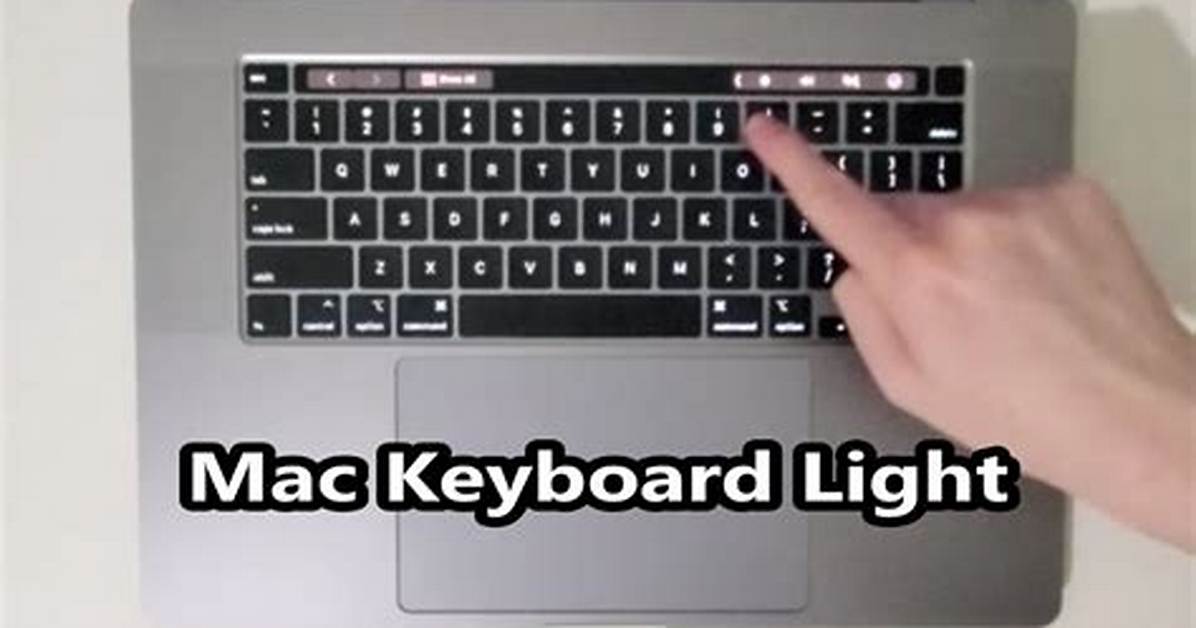
When users report a keyboard backlight not working, the culprit is rarely a dead hardware circuit. In most cases, it is an automated software lockout triggered by environmental lighting conditions. Because the ambient sensor overrides manual input in bright spaces, attempting to adjust brightness will show an on-screen "locked" symbol or an unresponsive Control Center slider.
Low light sensor troubleshooting begins with a quick physical test. Place your hand firmly over the top display bezel directly beside the webcam. Cover the sensor for five seconds. If room detection is working normally, the keyboard keys will immediately glow as macOS detects total darkness. If this fails to register, open System Settings > Keyboard and toggle "Adjust keyboard brightness in low light" off and on.
Persistent glitches can be resolved through deeper system resets. On Intel-based Macs, clearing the System Management Controller (SMC) resets hardware power buses responsible for backlighting. On modern Apple Silicon chips (M1 through modern configurations), SMC functions are handled directly by the unified system architecture. Resolving power quirks on Apple Silicon simply requires a full system shutdown, waiting 30 seconds for capacitors to discharge completely, and booting back up. Third-party automation utilities like Karabiner-Elements also let power users remap non-essential keys, such as F11 and F12, back to traditional brightness increments, restoring dedicated physical control.

