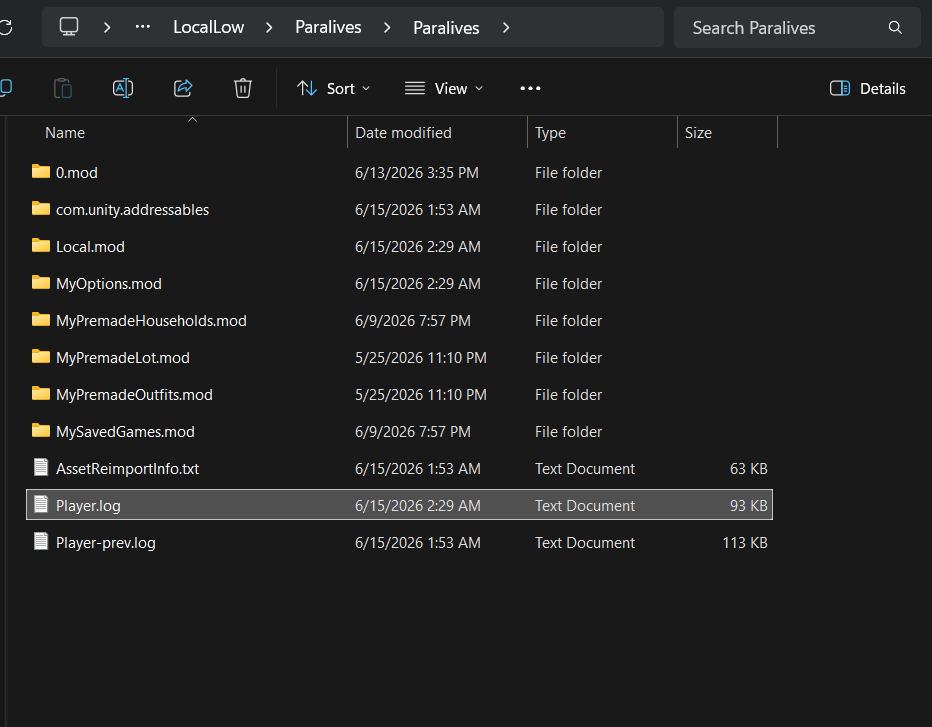
Until the incoming patch automates cache sanitation, players need practical, manual workarounds to launch the game. You do not need developer-level command tools to clear out the roadblock.
1. Purge the Local Asset Cache
Close Paralives completely. Open your Windows Run dialog by pressing Windows Key + R, type %USERPROFILE%\AppData\LocalLow\ParaliveStudio\Paralives, and press Enter. Locate the folders labeled Cache, AssetRegistry, and ShaderCache. Delete these directories. The game will regenerate them cleanly on your next launch, adding 60, 90 seconds to that initial boot while building fresh references.
2. Verify Game File Integrity via Your Launcher
If you run the game through Steam, right-click Paralives in your library, select Properties, navigate to Installed Files, and choose Verify integrity of game files. This scan compares your installation against clean server hashes, downloading replacements for any manifests mangled by hard system resets.
3. Execute Mod Isolation
Move the contents of your Mods folder to an external staging directory on your desktop. Relaunch the application. If the title screens load within standard timeframes, reintroduce custom packages in halves. When a specific half triggers the hang, split it again until you identify the offending package.

